This guide walks you through enabling Nova scoring on a job posting. The entire process takes 2-3 minutes.
Before you start, consider creating a dedicated “Nova” user in your ATS so scores appear under an AI account rather than your personal name. Learn more about ATS User Settings →

Setup Steps

1

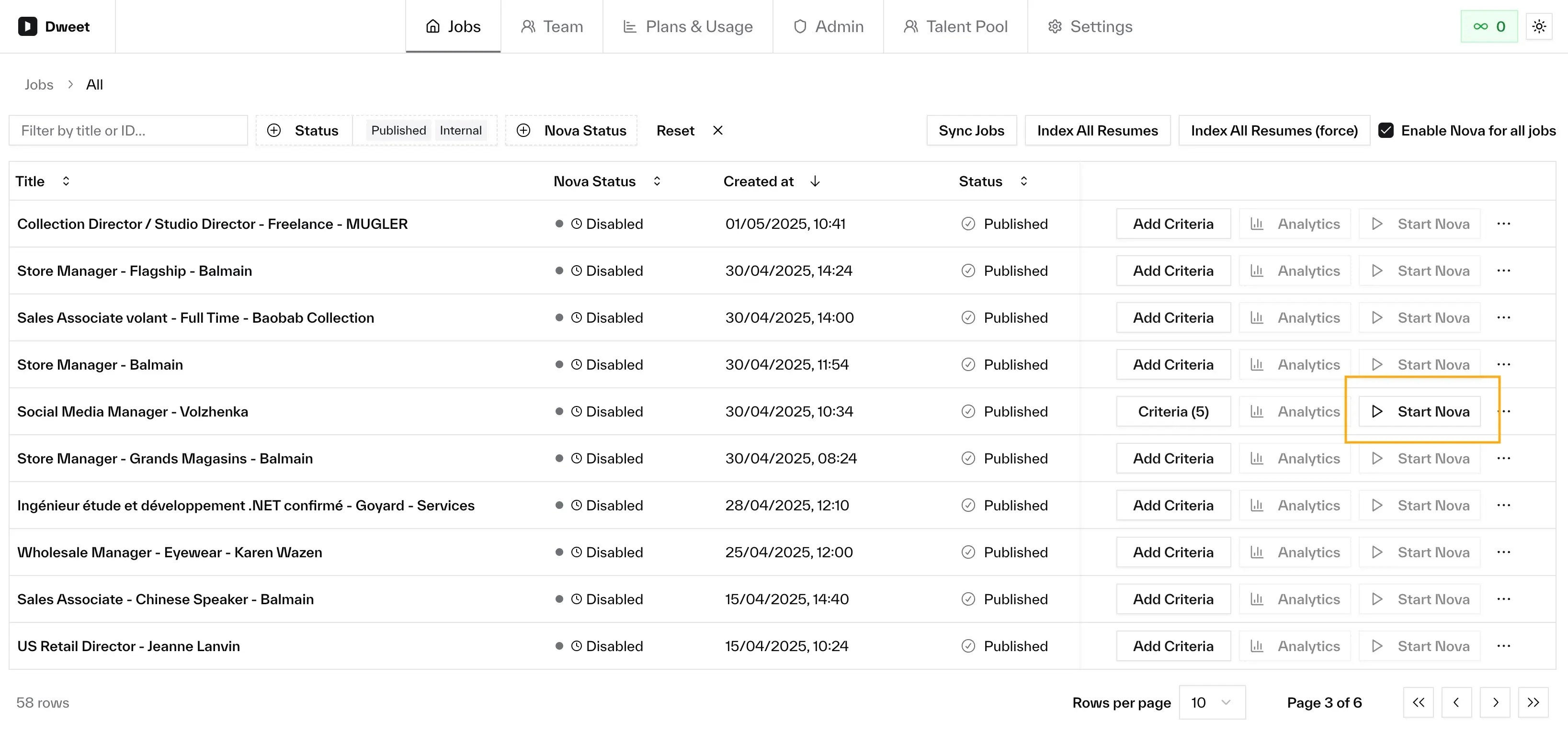
Navigate to Your Job

From your company dashboard, select the job posting where you want to enable Nova scoring.
2

Configure Criteria

  1. Click the “Criteria” button for your selected job
  2. Wait for Nova to analyze your job description and existing applications
  3. Review the generated criteria and click “Edit and Continue”
3

Enable Nova

  1. Locate the “Enable Nova” toggle or button
  2. Click to activate scoring for this job
  3. Confirm the action if prompted
Enable Nova
4

Verify Activation

Once enabled, you should see:
  • Updated Nova status indicator
  • Processing status updates in the applications table and Nova Analytics dialog
  • Nova scores appearing on new applications in your ATS

Optional: Configure ATS User Settings

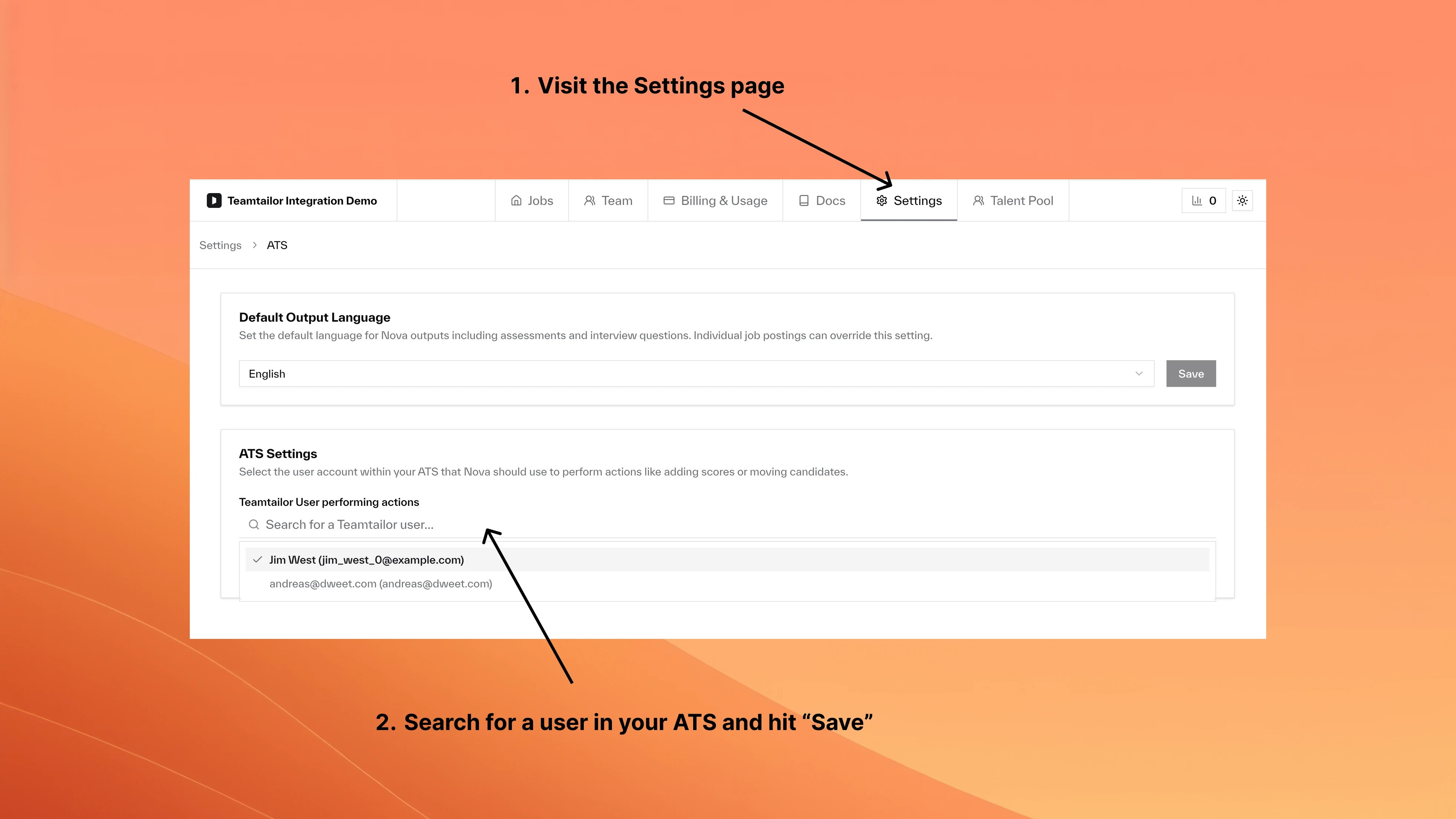
For better attribution and organization, configure which user account Nova uses to post scores and comments in your ATS.
1

Open ATS Settings

From your Jobs page, click “ATS Settings” to access user configuration.
2

Select Nova User

Choose a dedicated “Nova” system user or an existing team member for clearer attribution of AI-generated content.
ATS Settings
Complete ATS User Settings Guide →

Next Steps