

Smart Auto Tagging is available as an add-on feature. Contact your account manager to enable it for your organization.
How It Works
Sync Your TagsNavigate to Settings > ATS Tag Management and click “Sync Tags” to import all existing tags from your ATS.
Configure Tag RulesClick “Configure” on any tag to write AI instructions for when to apply it. Use “Auto-Generate” for AI-suggested instructions, then customize as needed.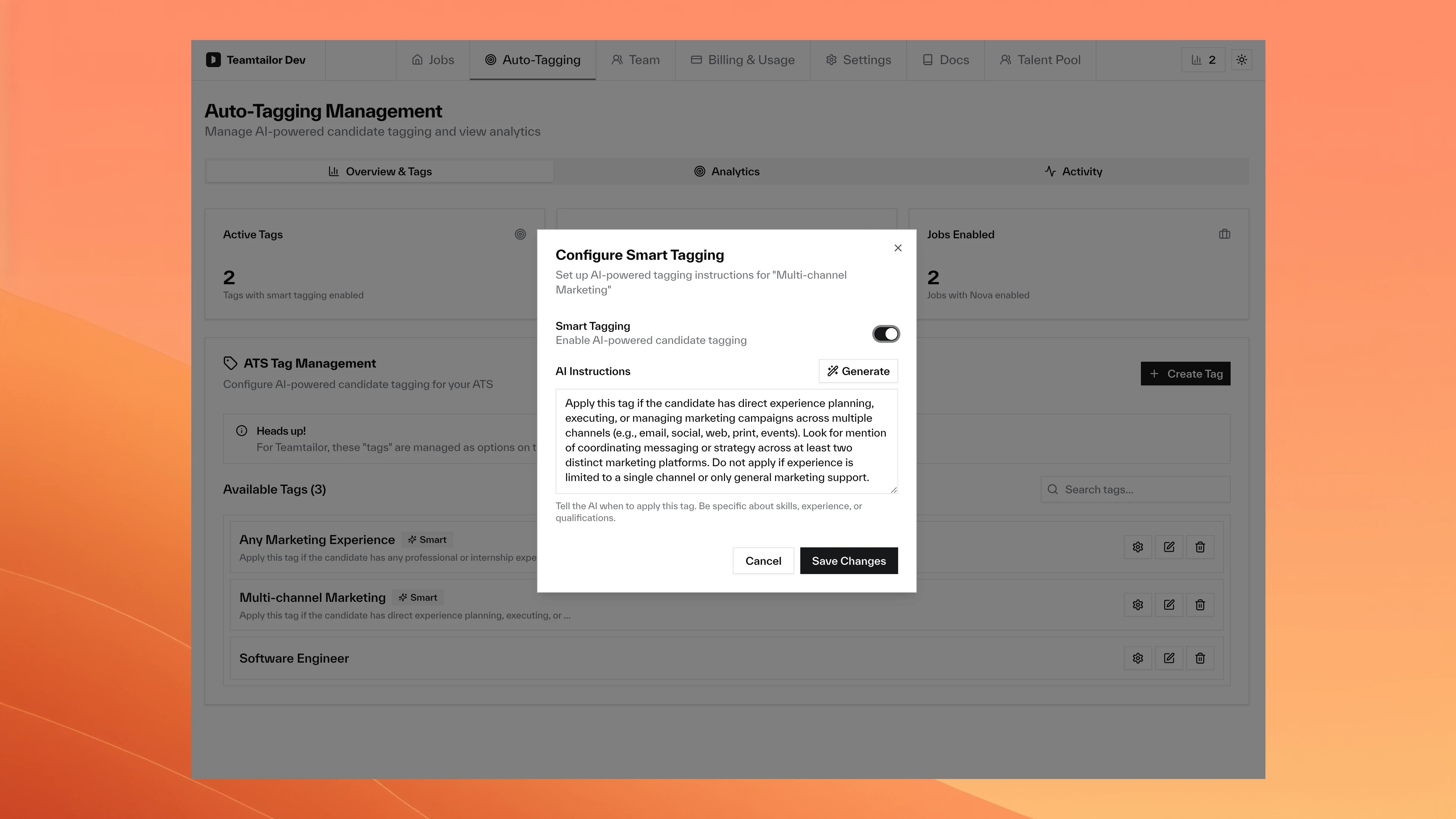
Supported ATS Platforms
- Teamtailor
- Ashby
- Lever
- Greenhouse
Custom Field Integration
- Uses “Nova Tags” custom field for structured management
- Create, edit, and delete tags through Nova interface
- Tags appear as multi-select options in candidate profiles
- Fully integrated with Teamtailor’s filtering system
Learn more about Teamtailor integration.
Writing Effective Tag Rules
Tag rules determine when Nova automatically applies tags to candidates. Well-written rules lead to accurate, consistent tagging.Good vs Poor Rules
| Tag Name | Good Rule | Poor Rule |
|---|---|---|
Scale-up experience | Apply to candidates who worked at companies during high-growth phases (50-500 employees) | Apply to good candidates |
Client-facing roles | Apply to candidates with customer interaction experience across sales, support, or account management | Apply to people who talk to customers |
Technical leadership | Apply to candidates who led technical projects or mentored teams without “manager” titles | Apply to tech leaders |
Best Practices
Be specific with examples
Be specific with examples
Include concrete criteria like company names, technologies, experience levels, or team sizes. This helps Nova understand exactly what you’re looking for.Example:
“Apply to candidates who worked at companies during high-growth phases (50-500 employees)”
Use measurable criteria
Use measurable criteria
Include quantifiable requirements like years of experience, team sizes, or specific outcomes rather than subjective qualities.Example:
“Apply to candidates who led projects that resulted in measurable efficiency improvements (cost reduction, time savings, or process optimization)”
Start with Auto-Generate
Start with Auto-Generate
Use the “Auto-Generate” feature to get AI-suggested instructions, then customize them to match your specific needs.
Example Tag Rules
| Tag Name | AI Instruction |
|---|---|
Scale-up experience | Apply to candidates who worked at companies during high-growth phases (50-500 employees) |
Client-facing roles | Apply to candidates with customer interaction experience across sales, support, or account management |
Technical leadership | Apply to candidates who led technical projects or mentored teams without “manager” titles |
Product launch experience | Apply to candidates who shipped products from concept to market launch |
Cross-functional experience | Apply to candidates who worked across multiple departments (engineering, product, marketing, etc.) |
Process improvement experience | Apply to candidates who optimized workflows, reduced costs, or increased efficiency |
Tag Accuracy
Well-written rules typically achieve 99% accuracy. You can improve accuracy by:- Review initial results - Check the first 20-30 automatically tagged candidates
- Refine rules - Adjust instructions based on results
- Add examples - Include specific company names, technologies, or scenarios
- Use Auto-Generate - Start with AI suggestions and customize
Managing Auto-Applied Tags
Can I edit automatically applied tags?
Can I edit automatically applied tags?
What happens when I change a tagging rule?
What happens when I change a tagging rule?
Rule changes apply only to newly processed candidates. Existing tags on previously scored candidates remain unchanged.
Can I apply tags retroactively?
Can I apply tags retroactively?
How do I disable automatic tagging?
How do I disable automatic tagging?
You can disable automatic tagging for any tag in Settings > ATS Tag Management. Previously applied tags remain unchanged.