

Step-by-Step Guide
Create Your CriteriaClick the “Criteria” button for the job, wait for Nova’s analytics to complete, then click “Edit and Continue.”
Enable NovaLook for the “Enable Nova” toggle or button, click to enable, and confirm the action if prompted.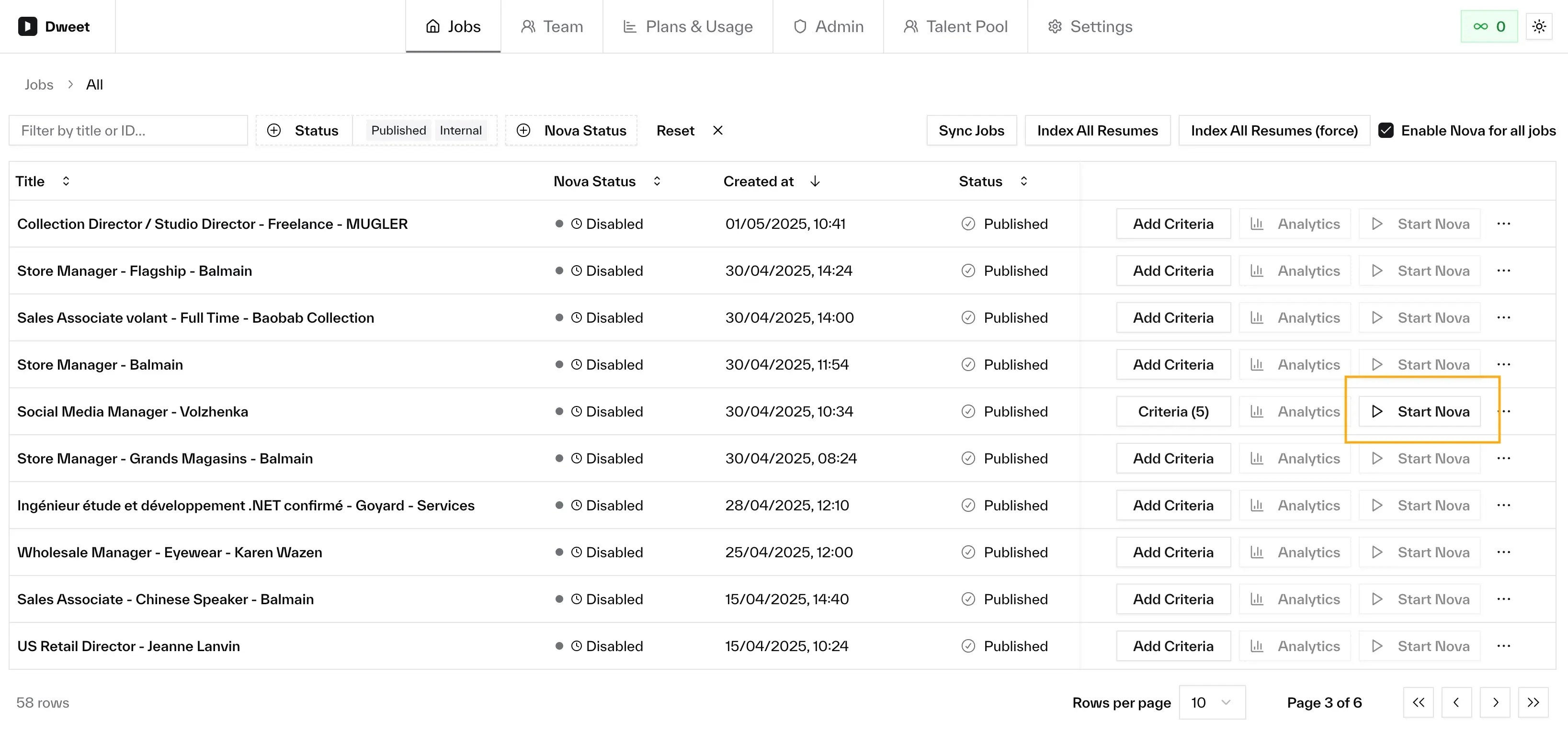
Additional Setup Considerations
ATS User Configuration
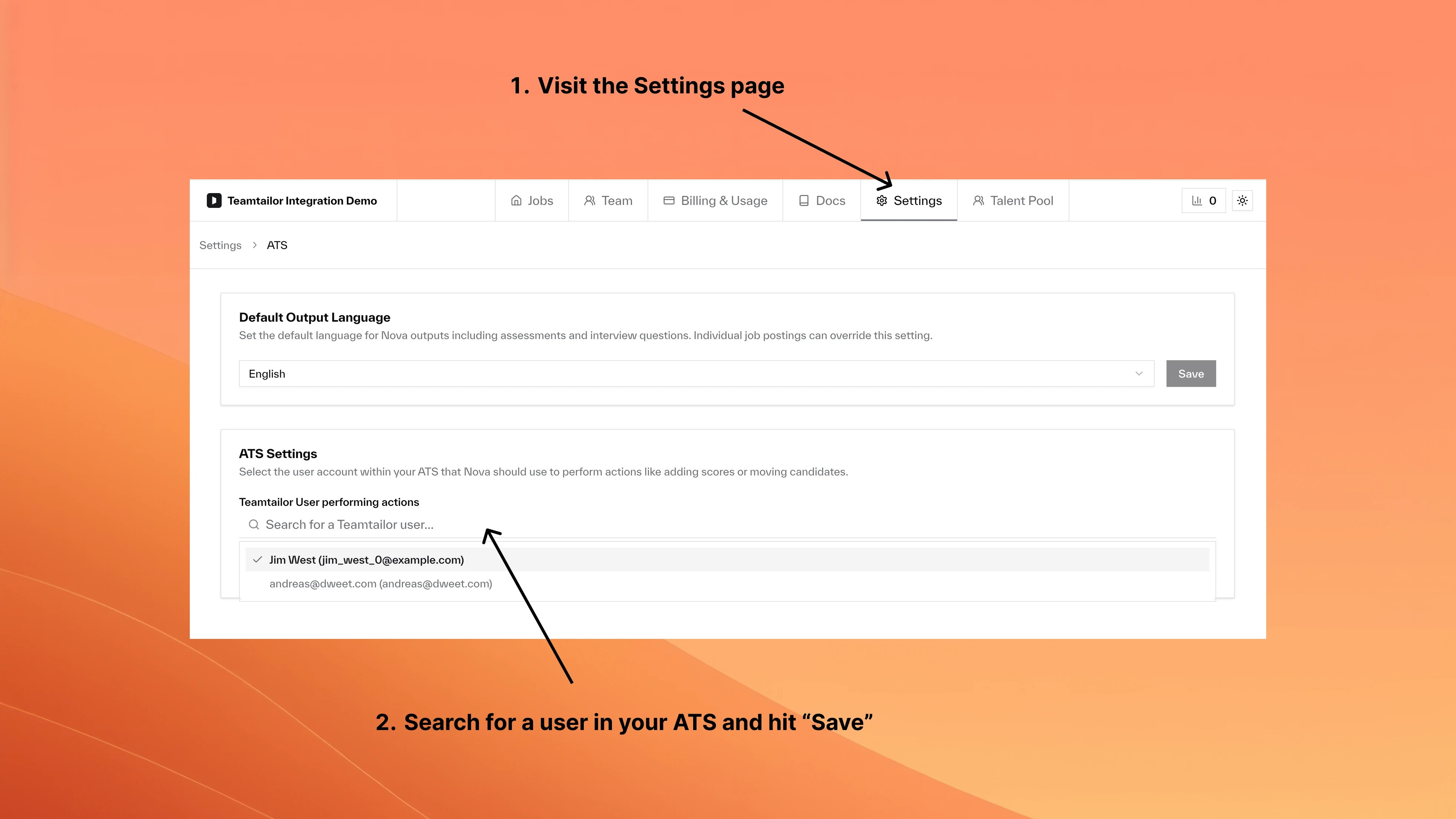
Configure which user account Nova uses to post scores and comments in your ATS. By default, Nova uses your first admin user, meaning AI-generated content appears under a real person’s name. Consider:- Creating a dedicated “Nova” user for clear attribution
- Using an existing team member if preferred
- Configuring via ATS Settings on your Jobs page
What Happens When You Enable Nova
- Immediate Effects
- Ongoing Processing
- Data Flow
Right Away:
- Nova status indicator changes to “Active”
- Processing begins for existing applications
- New applications are automatically scored
- Interview questions generated for candidates
Understanding Auto-Disable
Nova includes automatic management to help control costs and maintain clean job lists:- License Expiry
- Inactivity Monitoring
How License Expiry Works:
- Each job gets a license based on your plan’s billing cycle
- Monthly plans: 30-day license
- Quarterly plans: 90-day license
- Yearly plans: 365-day license
- Nova stops processing new applications
- Email notification sent to administrators
- One-click re-enable available from dashboard
- All previous data and scores preserved
Managing Auto-Disabled Jobs
Re-enabling Process
Identify Disabled JobsLook for jobs marked with “Auto-Disabled” status indicators showing the disable reason.
Best Practices
Cost Management
Cost Management
Strategic Enabling:
- Only enable Nova for jobs you’re actively recruiting for
- Disable Nova immediately when positions are filled
- Let auto-disable handle dormant positions naturally
- Monitor your dashboard weekly for job status
- Manually disable Nova for paused positions
- Re-enable jobs when recruiting resumes
Optimization Tips
Optimization Tips
Maximize Effectiveness:
- Set up criteria before enabling for best results
- Review first 20-30 scores and adjust criteria if needed
- Use interview questions feature for better candidate evaluation
- Share criteria with hiring team before enabling
- Train interviewers on Nova’s scoring methodology
- Establish process for handling auto-disabled jobs
Frequently Asked Questions
What happens to existing applications when Nova is enabled?
What happens to existing applications when Nova is enabled?
Nova processes and scores all existing applications in addition to new ones. You’ll see scores appear for candidates already in your pipeline within minutes.
Can I re-enable a job after it's auto-disabled?
Can I re-enable a job after it's auto-disabled?
Yes. Jobs can be re-enabled anytime from your dashboard. This starts a new license period if disabled due to license expiry, with all previous data intact.
Does auto-disable affect my ATS or job posting?
Does auto-disable affect my ATS or job posting?
No. Auto-disable only affects Nova’s AI processing. Your job remains active in your ATS and continues receiving applications normally.
How do I know when jobs will be auto-disabled?
How do I know when jobs will be auto-disabled?
Your dashboard shows license status and last activity dates. You’ll also receive email notifications before and when jobs are auto-disabled.
Can I change the auto-disable settings?
Can I change the auto-disable settings?
Basic settings can be configured by your account administrator. Contact your account manager for custom configurations based on your recruitment patterns.
What if I don't want auto-disable for my company?
What if I don't want auto-disable for my company?
License expiry is part of the plan structure and ensures fair usage. Inactivity auto-disable can be configured by your account manager based on your needs.