

Start your free trial
Book a call to get your Nova account set up.
How Nova Works in Ashby
Setup Integration
Video Guide
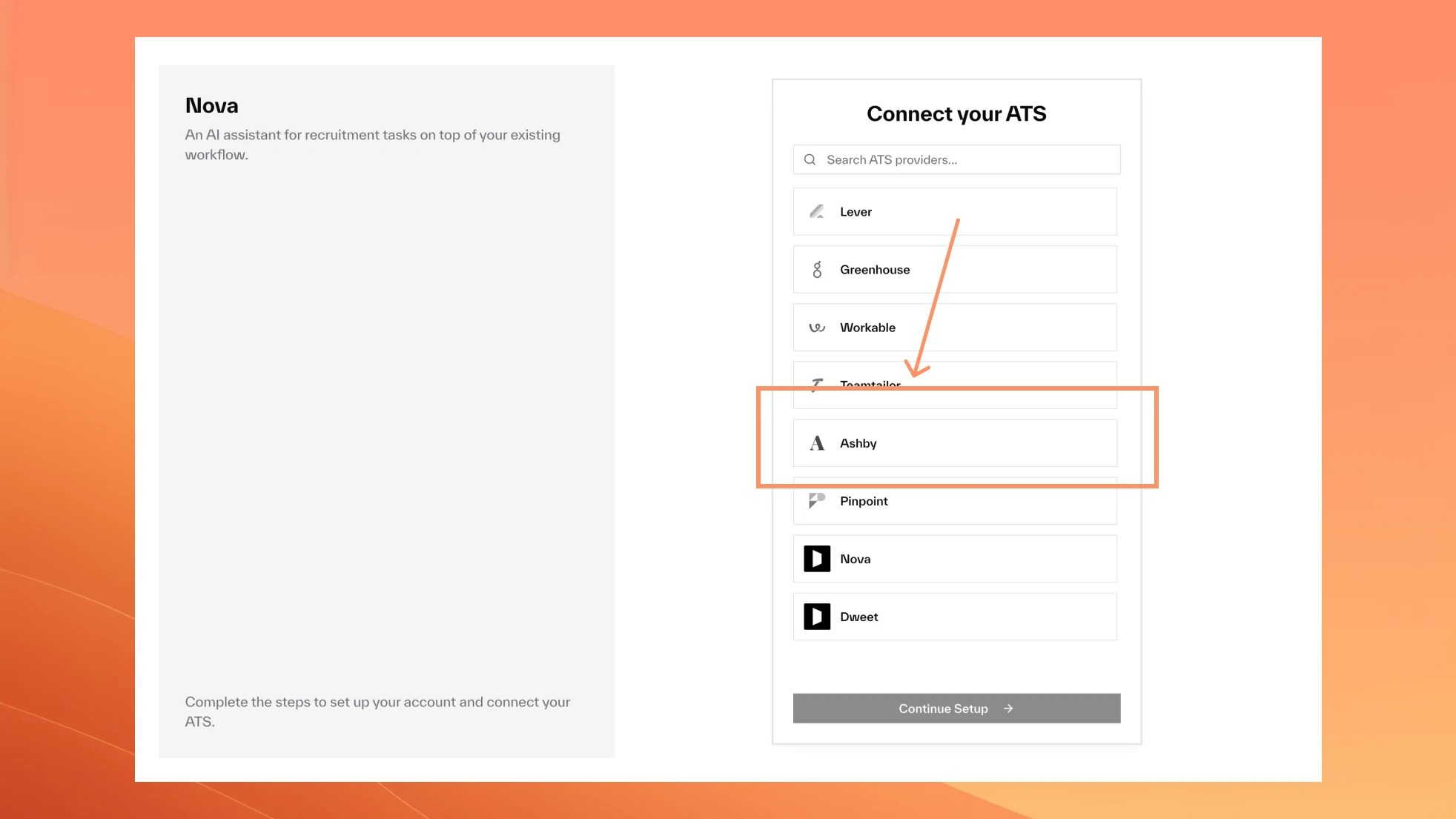
Select Ashby from the list of ATS providers
Setup API Key
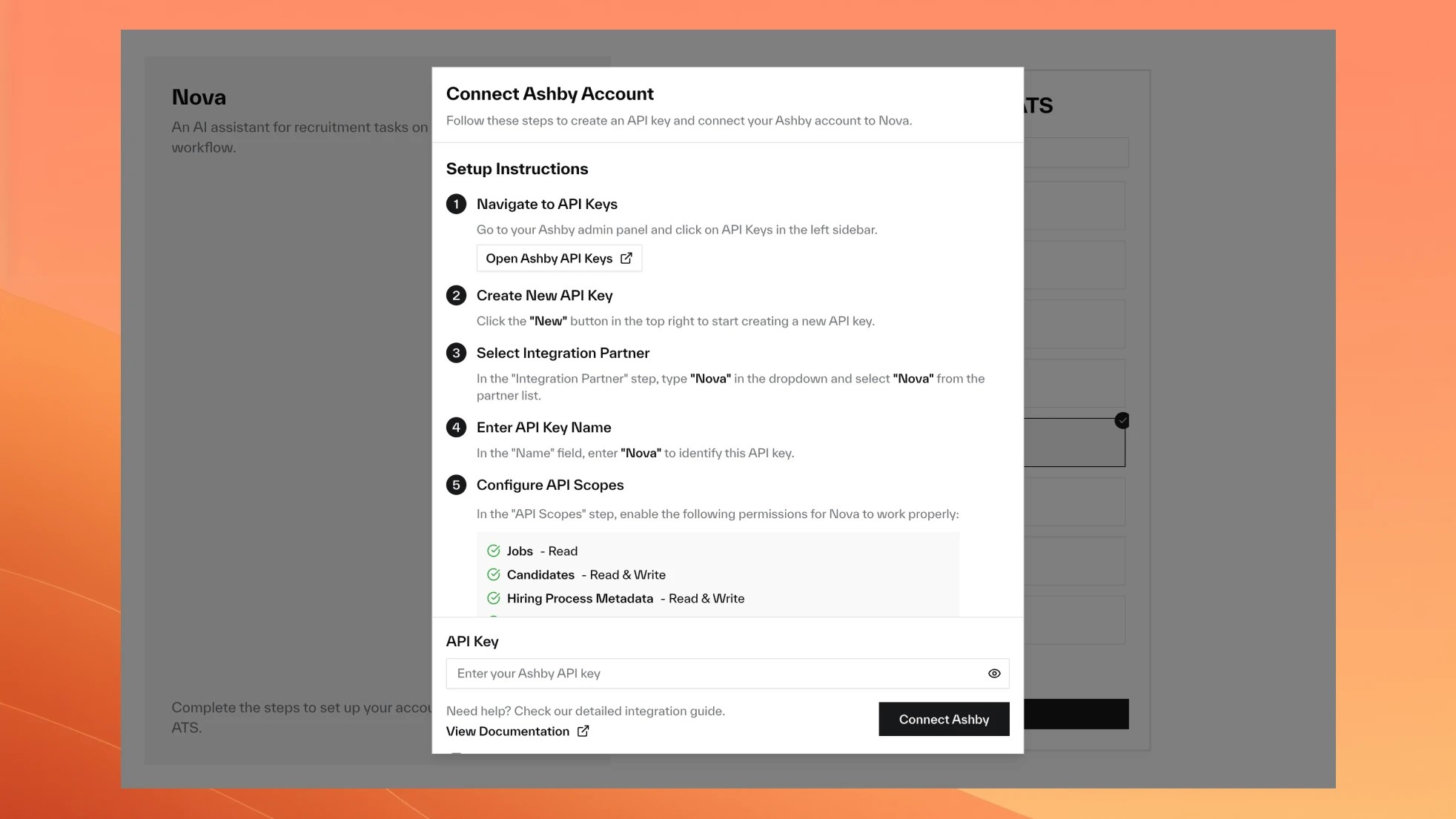
Navigate to API Keys
Go to Ashby API Keys and click on “API Keys” in the left sidebar
Select Integration Partner
In the “Integration Partner” step, type “Nova” in the dropdown and select “Nova” from the partner list
Configure API Scopes
In the “API Scopes” step, enable these modules with the specified permissions:
- Jobs - Read
- Candidates - Read, Write
- Hiring Process Metadata - Read, Write
- Organization - Read
- Interviews - Read
Copy API Key
In the final “API Key” step, Ashby will generate your key. Click “Copy and Close” to copy the API key to your clipboard
Connect to Nova
Return to Nova → Settings → Integrations → Ashby and paste the copied API key to complete the integration
Nova Scores in Ashby
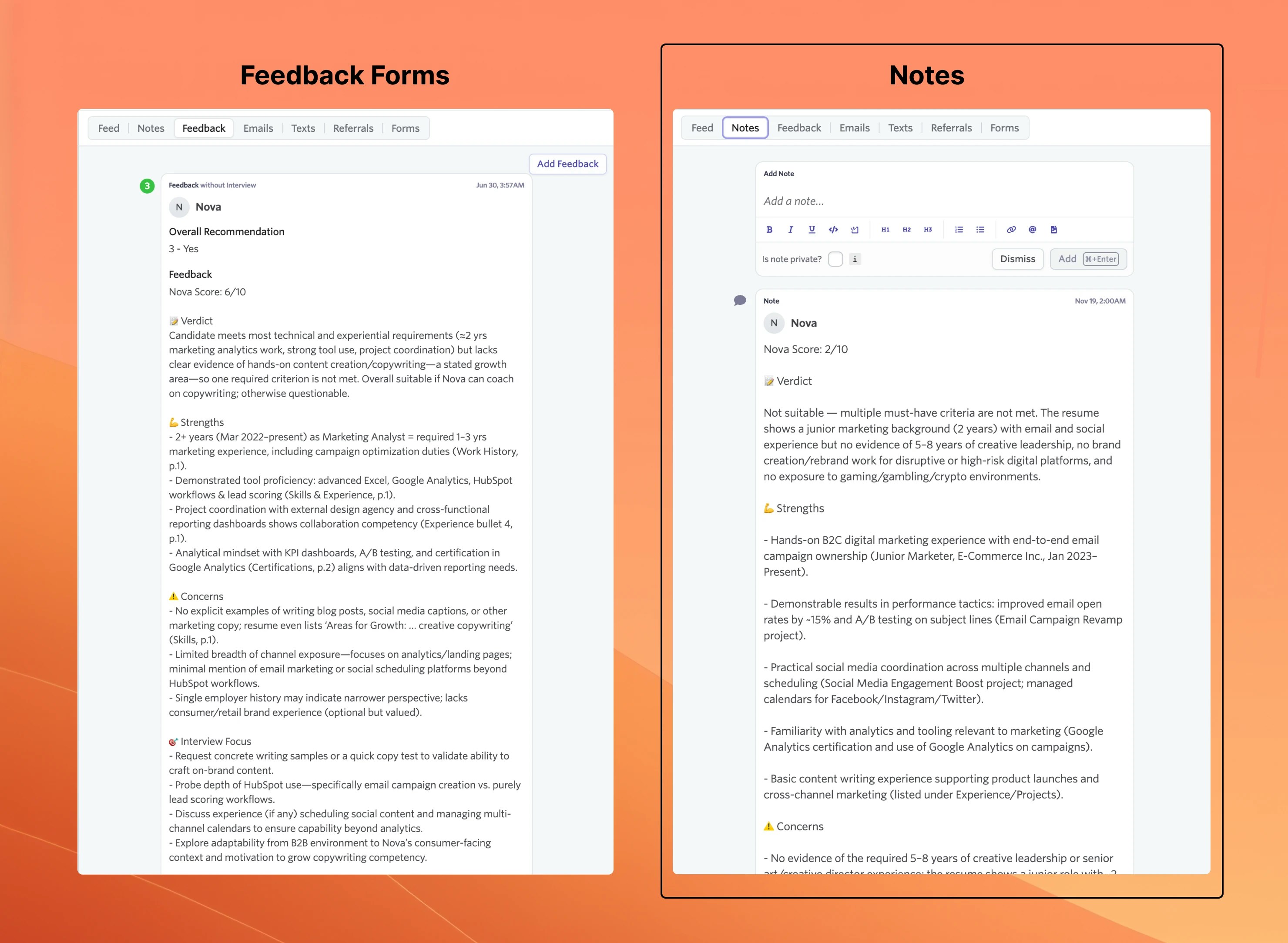
Nova always adds a Nova Score custom field to each candidate, so you can sort and filter candidates by score. You can also choose where the detailed assessment breakdown appears.
Recording Method
Choose how Nova records detailed candidate assessments. The Nova Score custom field is always added regardless of your choice.
- Tab Title
- Tab Title
Structured Feedback with Overall RecommendationThe detailed breakdown appears as structured feedback with an Overall Recommendation field.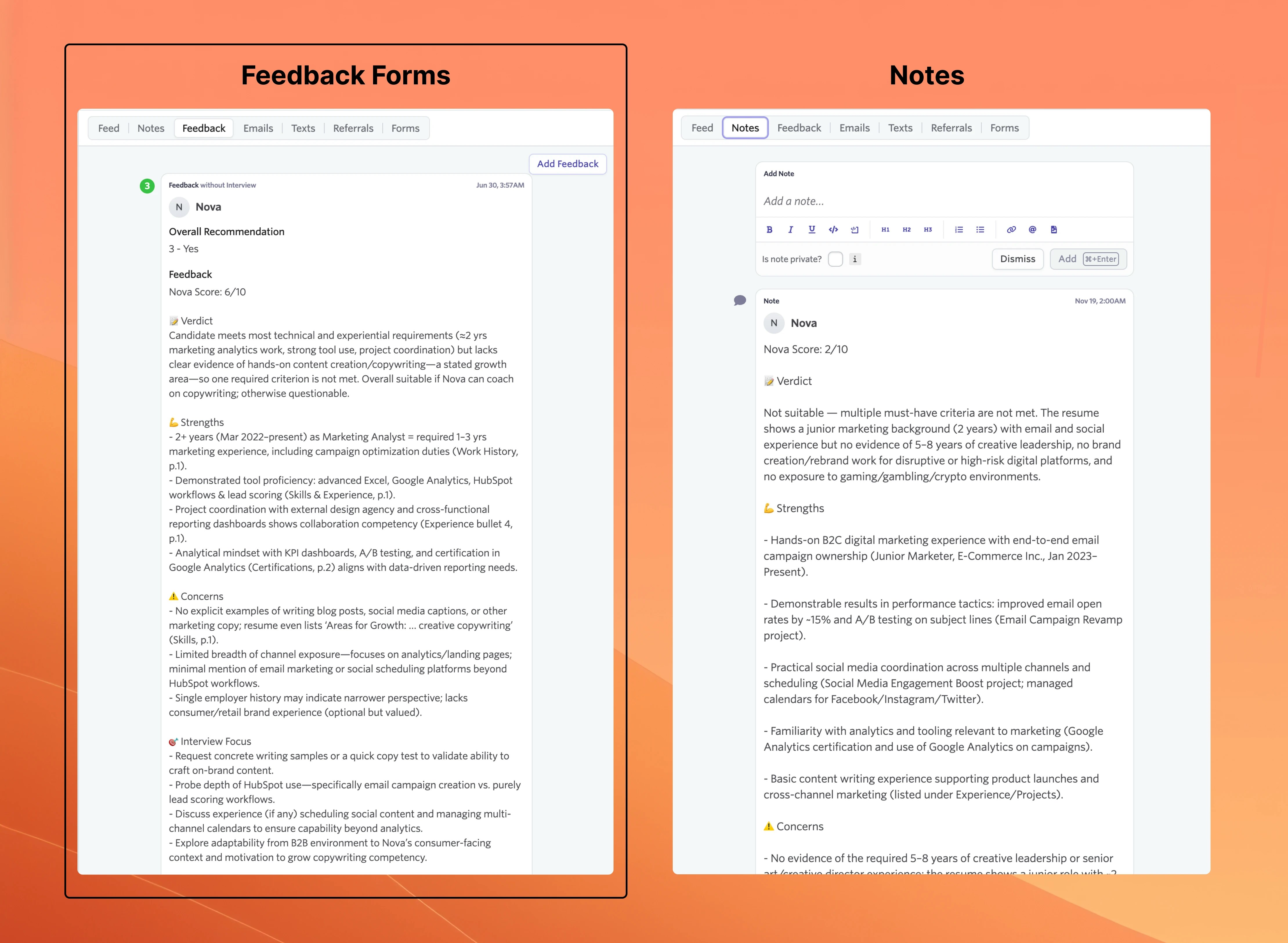
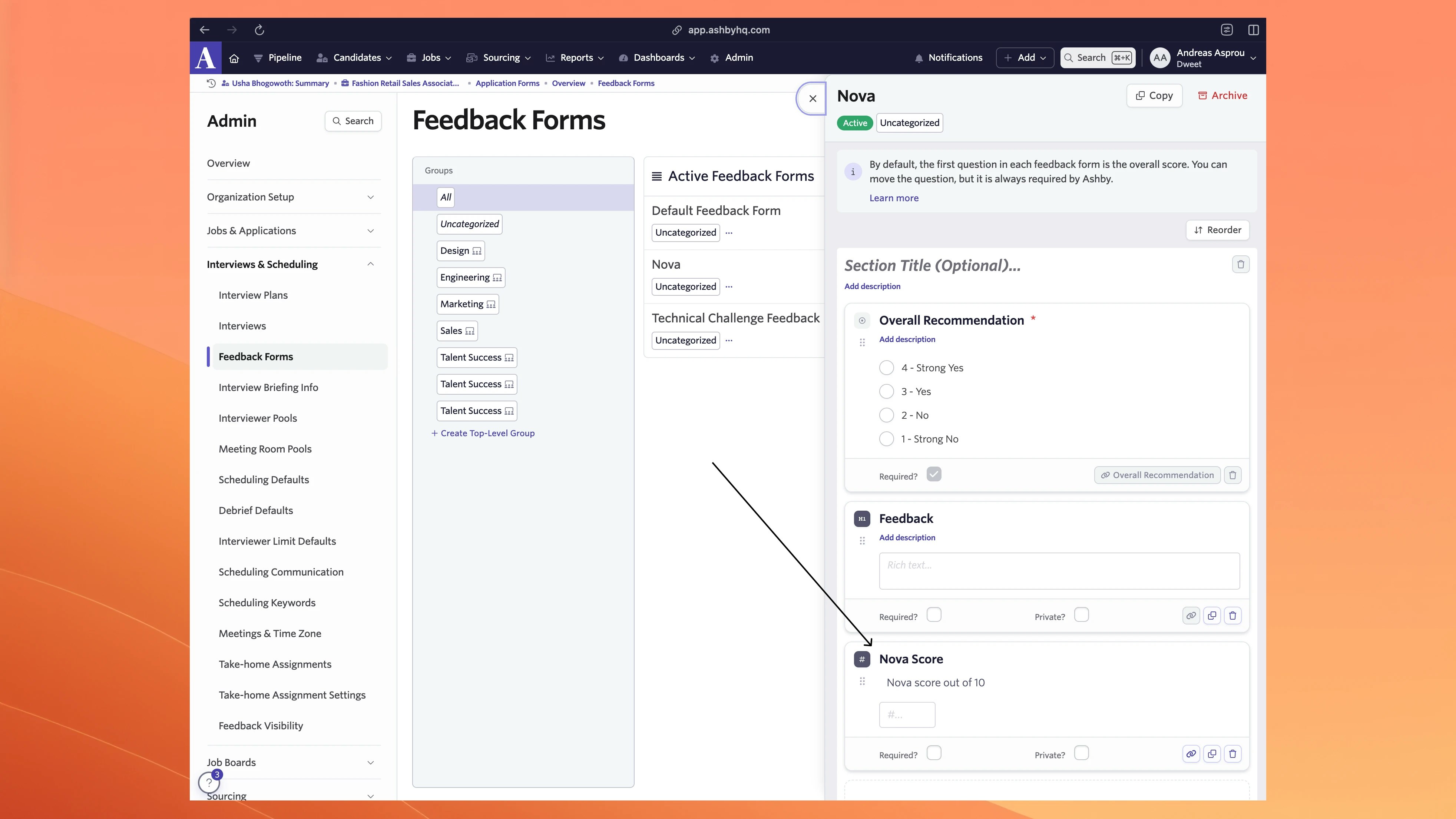
Feedback Form Setup
This section only applies if you chose Feedback Forms as your recording method.
Go to Ashby Feedback Forms
Navigate to Ashby Feedback Forms and create a new form
Keep Overall Recommendation Field
- Field Type: Value Select
- Title: “Overall Recommendation”
- Options: 1-4 scale (Strong No → Strong Yes)
Form Structure Example
Score Mapping
Nova converts its 1-10 scale to Ashby’s 1-4 recommendation scale:| Nova Score | Ashby Recommendation |
|---|---|
| 1-3 | 1 - Strong No |
| 4-5 | 2 - No |
| 6-7 | 3 - Yes |
| 8-10 | 4 - Strong Yes |
Automatic Candidate Filtering
Nova automatically skips scoring for hired and archived candidates to save credits.
- Hired candidates
- Archived candidates